Set photo tags from names and folders
File names and folders already hold the story, but photo tags are empty or wrong? One Image Tag Setter step can do the whole shoot: Title from the file name (Sunset over Lake.jpg → Title), Keywords from parent folders (Vacation\Italy\pic.jpg → Vacation; Italy), and a fixed Author / Copyright stamp before you publish. The Rename List live-previews those tag columns before you press GO. Write works on JPEG and PNG. Start from the sample Image: Keywords from Folder, then add Title and Author / Copyright in the same setter. Need names from EXIF instead? See Rename photos from EXIF.
In the app
-
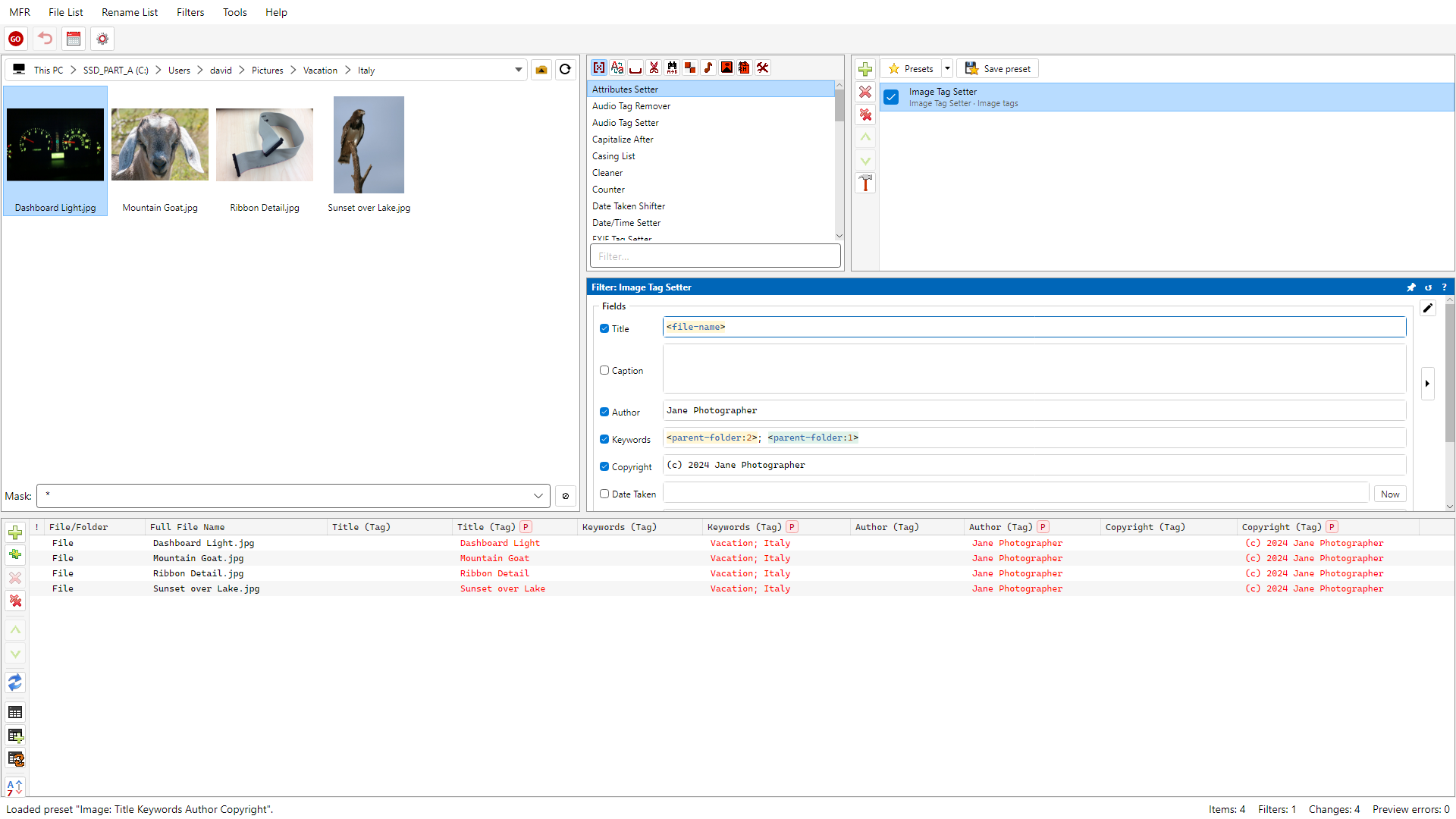
Screenshot: setting photo Title, Keywords, Author, and Copyright with File List Thumbnails
How to do it
- Add pictures in the File List (folders, recursive scan, or Explorer Rename with MFR 8).
- Add Image Tag Setter (or load Image: Keywords from Folder and extend it): set Title from
<file-name>, Keywords from parent-folder tokens, and Author / Copyright to fixed text for the shoot. - Review the Rename List: check Title, Keywords, Author, and Copyright tag columns (before/after), then GO.
- Optional: save the chain as a preset and re-run later in the UI or with mfrc.
Related Help
FAQ
- Can Magic File Renamer write Title, Keywords, and Copyright in one pass?
- Yes. Image Tag Setter configures those fields in one Filter Chain step - Title from the file name, Keywords from folders, Author / Copyright as fixed text. Tag columns preview before GO.
- Which image formats can MFR retag?
- JPEG and PNG for everyday fields (Title, Caption, Author, Keywords, Copyright, Rating; Date Taken is JPEG only). GIF comments use Image Comment Setter. TIFF, WebP, HEIF/HEIC, and RAW stay read-only for naming.
- What if I need to rename from EXIF instead?
- Use the Rename photos from EXIF use case - Formatter EXIF and GeoNames tokens build file names from metadata already on the photos.