Set audio tags from file names
File names already hold the metadata, but tags are empty or wrong? Magic File Renamer builds a Filter Chain that writes tags with Audio Tag Setter and ID3v2 Field Setter — from the name, parent folder, or fixed values. The Rename List live-previews tag columns before you press GO. Supported write formats include MP3 (ID3v1/ID3v2), FLAC, Ogg Vorbis / Opus, M4A/MP4, WMA/ASF, WAV (RIFF INFO), and APE.
How to do it
- Add tracks in the File List (folders, recursive scan, or Explorer Rename with MFR 8).
- Build a Filter Chain with Audio Tag Setter and/or ID3v2 Field Setter to map artist, album, title, track, and other fields from the file name, parent folder, or fixed text.
- Review the Rename List: check tag columns (before/after), fix predicted errors, then GO.
- Optional: save the chain as a preset and re-run later in the UI or with mfrc.
In the app
-
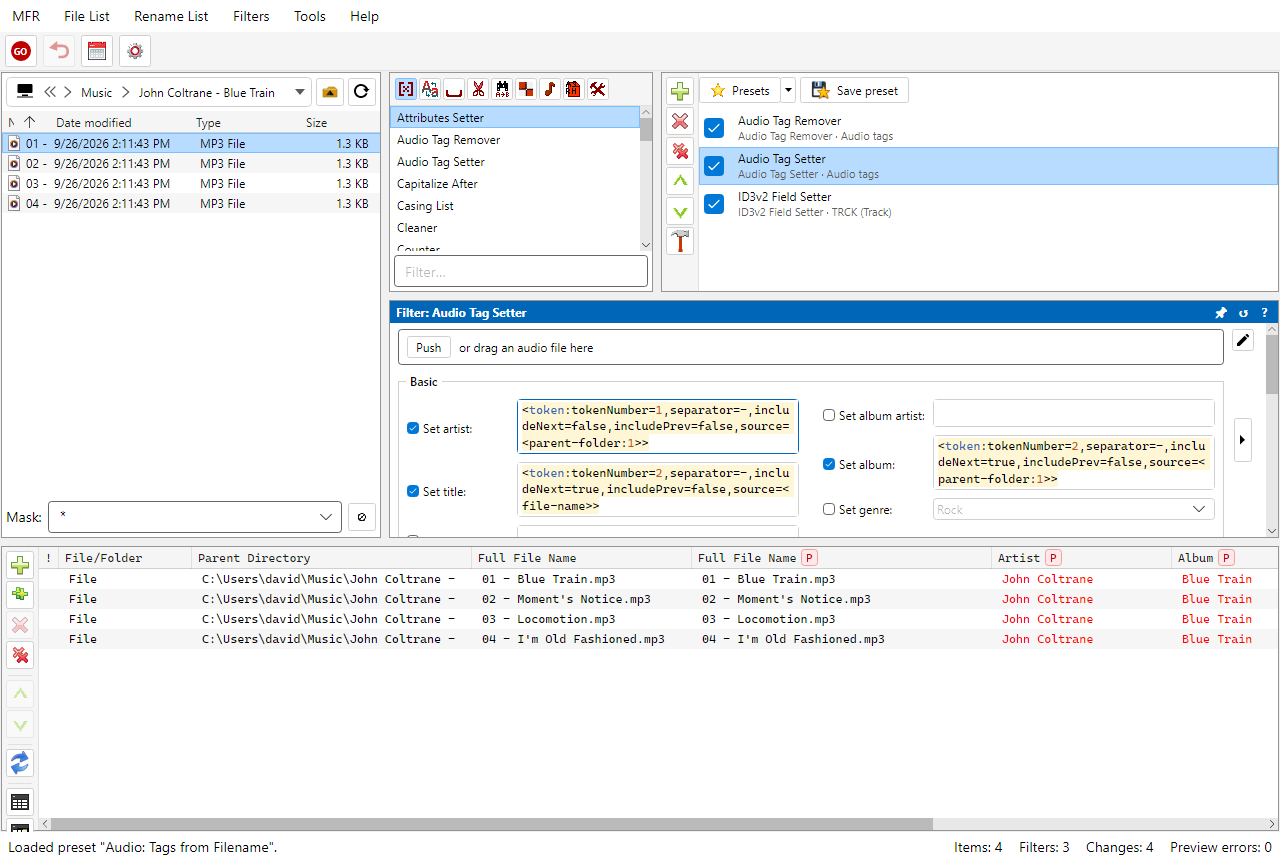
Screenshot: setting ID3 tags from file names
Related Help
FAQ
- Can Magic File Renamer write ID3 tags from file names?
- Yes. Audio Tag Setter and ID3v2 Field Setter write tags from the name, folder, or fixed values. Tag changes show in preview columns before GO.
- Which audio formats can MFR retag?
- MP3 (ID3v1/ID3v2), Ogg Vorbis / Opus, FLAC, APE, M4A/MP4 (Apple), WMA/ASF, and WAV (RIFF INFO). Image EXIF and PDF/EPUB/Office Info are read-only for naming — only audio tags are written.
- Do I need a separate tagger for MP3?
- Not for this workflow. MFR is a batch renamer and audio tagger: write tags with the same live preview you use for renames.
- What if I need to rename from tags instead?
- Use the Rename MP3 / FLAC from tags use case — Formatter audio tokens build file names from tags already on the tracks.
Download MFR 8 free (Windows 10 or later, 64-bit · FREE beta) · Features · Compare · All use cases