Organize music into folders
Flat download folders are fine until you want Artist\Album trees. Path Mover relocates files under a root folder using a sub-folder template with audio tokens (for example <audio-artist>\<audio-album>). Preview changes the parent directory in the Rename List before you press GO — folders are created and items moved on Apply. Source folders are never deleted.
How to do it
- Add audio files (or a library folder) in the File List.
- Add a Path Mover step: set the destination root and a sub-folder template such as
<audio-artist>\<audio-album>. - Review the Rename List folder / path columns (before/after), then GO.
- Optional: combine with a rename step in the same Filter Chain, or save a preset (sample: Audio: Artist Album Folders).
In the app
-
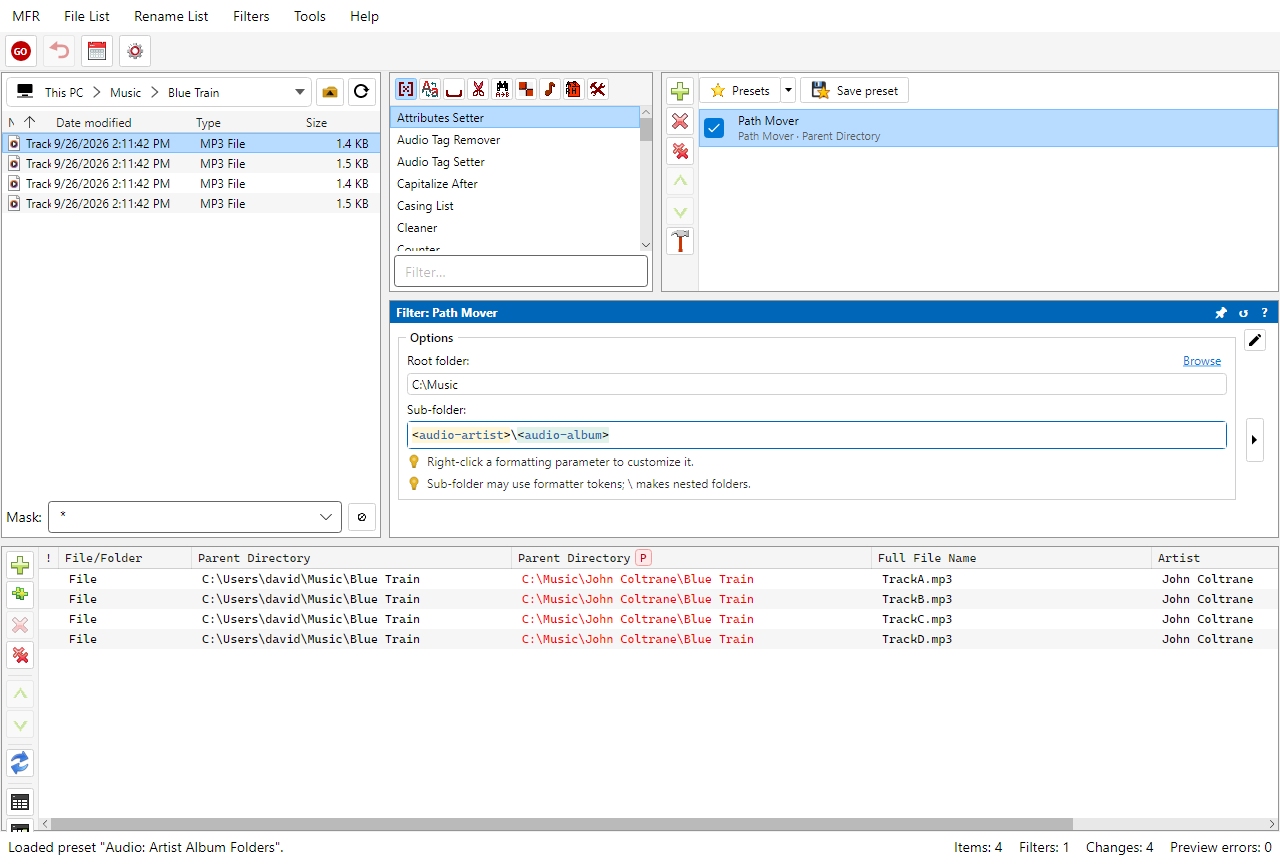
Screenshot: Path Mover organizing music into Artist and Album folders
Related Help
FAQ
- What does Path Mover do?
- It moves items to a destination root plus an optional sub-folder template (formatter tokens allowed). Preview shows the new parent directory; GO creates folders and moves files. Source folders are not deleted.
- Can I build Artist\Album trees from tags?
- Yes. Use a sub-folder pattern like <audio-artist>\<audio-album> (or the sample preset Audio: Artist Album Folders).
- Does Path Mover rename files too?
- Path Mover targets the path. Add Formatter or other rename filters in the same Filter Chain when you also need new file names.
Download MFR 8 free (Windows 10 or later, 64-bit · FREE beta) · Features · Compare · All use cases