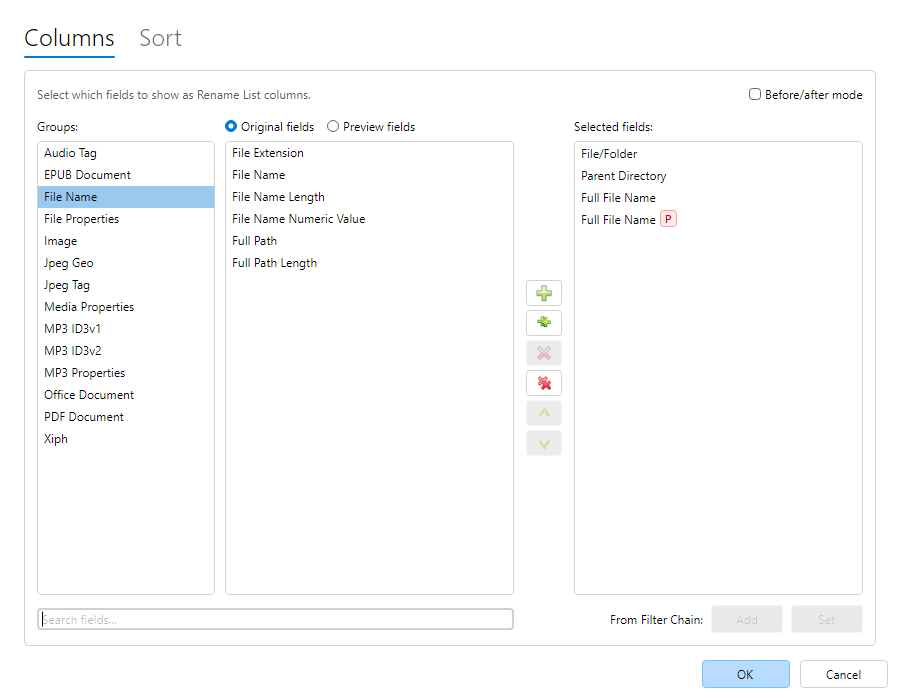
Select fields… opens the
Rename List fields window. It chooses which columns appear in the
Rename List and configures Auto-Sort. Open it from the Rename List
toolbar, menu, grid context menu, or a column-header menu. Groups nest like
Insert tokens (Audio, Image, Document). Open a folder, then
click a group such as XMP or
Geo to see its fields. On either tab, use
Search fields… to find fields across all groups (each hit shows its
group name). Clear the box (or use its clear button) to browse groups again. The search box is
shared between Columns and Sort.
Columns tab - Available fields (by group) and Selected fields. Add/remove with
buttons or double-click; reorder with Up/Down. Unlimited columns are allowed.
Before/after mode - when enabled, the stored layout is originals-only; use the
Rename List Before/After toggle (Ctrl+[ /
Ctrl+]) to flip between original and preview values for the same
fields.
Without Before/after mode, you can still include dedicated preview columns for writable
fields. Preview headers use distinctive styling; changed cells highlight in the grid.
Add columns from filters / Set columns from filters infer
columns from the current Filter Chain (write targets and format tokens).
Sort tab - multi-field Auto-Sort (same as
Auto-Sort). Select sort fields… opens
this dialog on the Sort tab.
Hide a single column from a header context menu (Hide field).