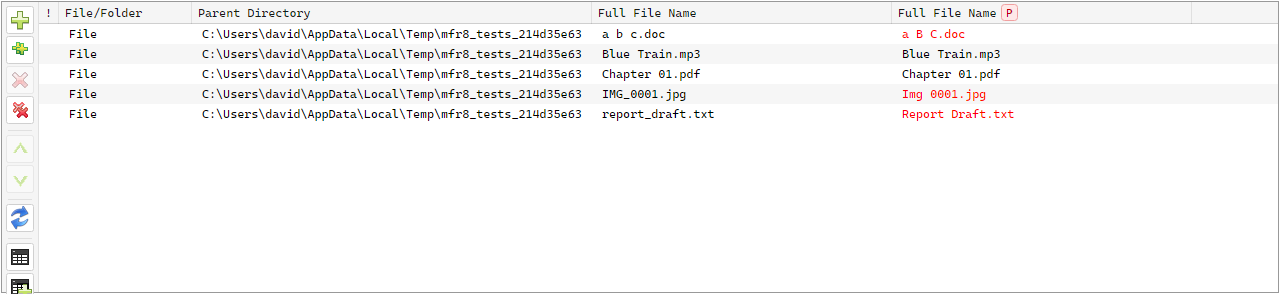
The Rename List holds the files and folders you intend to process. It shows live preview of
Filter Chain results, supports multi-column sort, export, and manual overrides.
Adding items
From the File List: Add selected (Ctrl+Shift+S),
Add all (Ctrl+Shift+A), drag-and-drop, or double-click when Options
is set to Add to Rename List.
Drag from Windows Explorer or other apps onto the Rename List.
Options control files vs folders, folder contents
recursion, and hidden/system inclusion. File List Mask and Exclude still apply.
Each path appears at most once. Item count is in the status bar.
A progress dialog appears for longer adds. Cancel (Esc) discards
the in-progress batch; Cancel and keep added stops resolving and inserts
items already collected.
Removing items
Remove selected: toolbar / menu (Ctrl+Shift+R) or
Del when the grid is focused (does not delete files on disk).
Remove all but selected (Ctrl+Shift+B), Clear
(Ctrl+Shift+C).
Selecting fields
Select fields… chooses visible columns and optional
Before/after mode. Hide a column from the header menu.
Column layout and widths can persist across sessions (see Options → Remember column widths).
Presets can store columns when you save a preset.
Preview
Auto-Preview recalculates results when the Filter Chain or list membership changes. Toggle
Auto-Preview from the Rename List toolbar or menu.
Changed cells are highlighted. Preview failures mark the row and increment
Preview errors on the status bar; those rows are skipped on GO.
Use Before/after mode or preview columns to compare originals and results.
Focus a writable cell and press F2 (or use the context menu) to set
a manual value. Preview-side overrides win over filter output; original-side edits are then
processed by the Filter Chain.
Cancel overrides from the context menu, or refresh (F5) to clear
overrides and re-read from disk.
Highlighting
Changed preview values are highlighted.
Manual overrides use a distinct text style.
Missing paths and field/preview/commit errors use gray / error styling; use row/cell menus for details.
Remove unchanged items
From a preview-capable column header menu, choose Remove unchanged items to drop rows where
that field is not predicted to change.
Export
Export this column (txt) from a header menu writes one value per
line.
Export Rename List (csv)… / Export visible columns writes the
on-screen columns (preview values when the After side is showing).
Edit as Name List
From a writable column header, Edit as Name List creates a temporary
list and adds a Name List filter so you can edit values in an
external editor.
Refresh
F5 on the Rename List re-reads originals from disk (clears manual
overrides) and re-runs preview when Auto-Preview is on.
More
F4 — locate the focused item in the File List.
Alt+Enter — Windows properties for the focused item.
Drag items to Explorer or into filter editors that accept drops.